
Alarm thresholds and notifications
A threshold defines when a call statistic requires attention. Set a threshold value for the statistic that you want to monitor, and Live Hub raises a Threshold Alarm when the statistic crosses that value.
Each metric supports two alert levels: Minor alert and Major alert. You can configure either level independently or configure both levels for the same metric.
Live Hub evaluates metric data every 5 minutes and generates alerts when configured thresholds are crossed.
Configure alarm thresholds
Configure thresholds for each metric on the Thresholds tab. You can set thresholds for both call statistics and monthly cost metrics.
To configure a threshold:
-
In the Navigation pane, select Alarms, and then select the Thresholds tab.
-
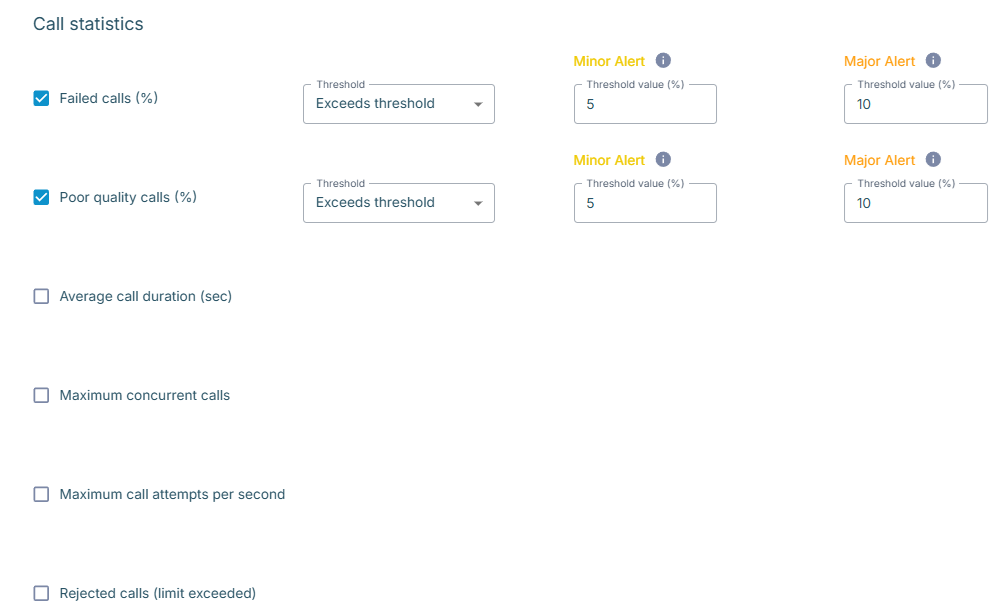
Under Call statistics, select the metric to watch:
- 'Failed calls (%)'
- 'Poor quality calls (%)'
- 'Average call duration (sec)'
- 'Maximum concurrent calls'
- 'Maximum call attempts per second'
- 'Rejected calls (limit exceeded)'
-
Under 'Threshold', select which direction matters: Exceeds threshold or Drops below.
-
In the 'Minor alert' field, enter the value that raises a minor alarm.
-
In the 'Major alert' field, enter the value for the more serious case.
-
If you want to be alerted about spending, set the same two levels for 'Monthly cost ($)' under Billing.

Billing thresholds can be set only on standalone or parent accounts.
-
Click Update.
Setting a threshold requires the livehub/alarms/thresholds/update role, and viewing
the tab requires livehub/alarms/thresholds/read.
Configure alarm notification
Configure email notifications to receive updates when alarms are raised or cleared.
Live Hub sends notification emails approximately every five minutes. Each email includes only the alarm changes that occurred since the previous notification.
To enable alarm notifications:
-
In the Navigation pane, select Settings.
-
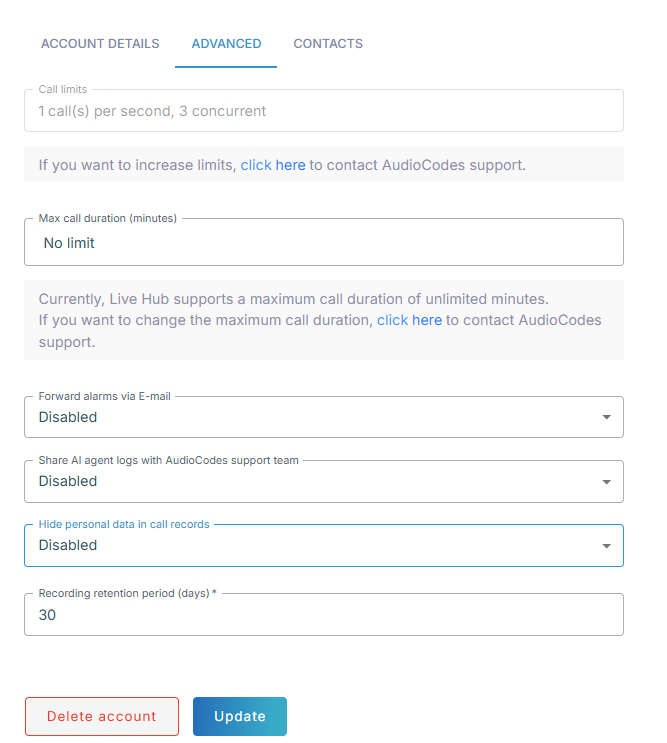
Select the Advanced tab.
-
From the 'Forward alarms via E-mail' drop-down list, select Enabled.
-
Click Update.